My development Workflow and Setup
Introduction
Being Productive is far Superior to being Busy!
In the middle of 2020, I commenced my coding journey with Python. Initially, I didn't care about what tools I was using, or whether I was using them efficiently and effectively.
Over the next years, I realized the importance of setting up a development environment best suited for my needs including the code editor, terminal, and other tools I used while developing something. I've tried and tested a bunch of tools in my development journey, and here are some tools and setup I use as of today and recommend including them into your development journey.
Terminal
Being a developer, you will spend most of the time inside the terminal. So it is necessary for you to have a terminal which is best suited for you and the work you do. For a very long time Hyper was my go to choice for terminal emulator, however it is built using Electron framework which is quite a bit low on performance and sometimes it displays weird artifacts in the terminal.
So recently, I started using the default Windows Terminal emulator which ships with newest version of Windows 11 (23H2), you can download it from Microsoft Store. I configured it to use PowerShell 7+ with some additional terminal based tools I use to make me more productive inside the terminal.
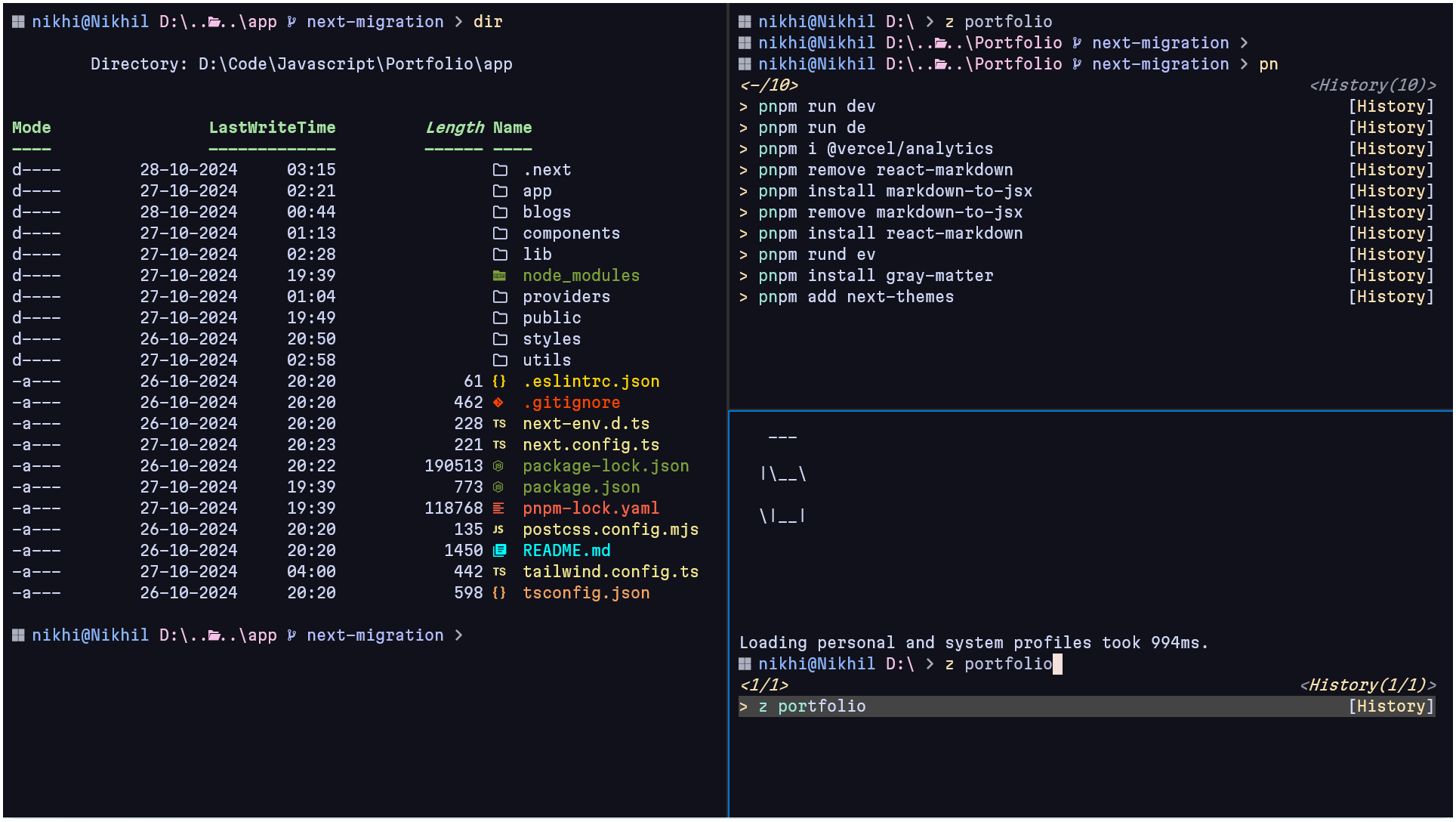
Here are some tools I use for improving my terminal experience
1. Nerd Fonts
Nerd Fonts are not like regular fonts, it is a Font for Nerds like us. It consists bunch of Icons and Symbols by using which the terminal can display additional information. I have used FiraCode Nerd Font and JetBrainsMono Nerd Font previously but have recently switched to MartianMono Nerd Font which in my opinion looks pretty amazing.
2. Oh My Posh
Oh My Posh is a Prompt theme engine that works on any shell you can think of. It helps you customizing the look of your terminal, by using existing themes it provides or you can create one for yourself. I am personally a huge fan of Catppuccin themes specifically the Mocha variant of it. Oh My Posh is also portable, means you can have one config that works everywhere.
3. Terminal Icons
Terminal Icons is a PowerShell module that adds file and folder icons when displaying the items in the terminal. Which itself relies on the custom icons provided by the Nerd font you use. Make sure you have configured your terminal to use Nerd Font in order to display terminal icons correctly.
4. PSReadLine
PSReadLins is also a PowerShell module which is inspired from Bash readline implementation. It gives you command suggestions based on the history of the commands you use, it also provides syntax highlighting, better error messages, etc.
5. Zoxide
Zoxide is a smarter cd command, which is inspired by z and autojump. It remembers which directories you use most frequent and maps it internally. So you can "jump" directly to them in just a few keystrokes instead of typing cd command multiple times.
// Instead of doing
cd home
// then
cd downloads
// OR
cd home/downloads

// You can do this to directly
// jump to "downloads" directory
z downloads
Code Editor
Visual Studio Code or VS Code is hands down the best code editor I have used till date. The light-weight feeling and amount of customization it provides is out of this world. I have been using JetBrains WebStorm IDE recently, which is a fully fledged IDE for Javascript/Typescript but I think it still can beat the customization options VS Code provides.
I have used terminal based editors like Vim, Neovim and Helix, but on Windows some Neovim plugins don't work properly. I ran into some issue while making my own Neovim config from scratch in WSL, to which I didn't found any solutions. Although I use Vim key bindings and few extensions inside VS Code to make it look Minimal.
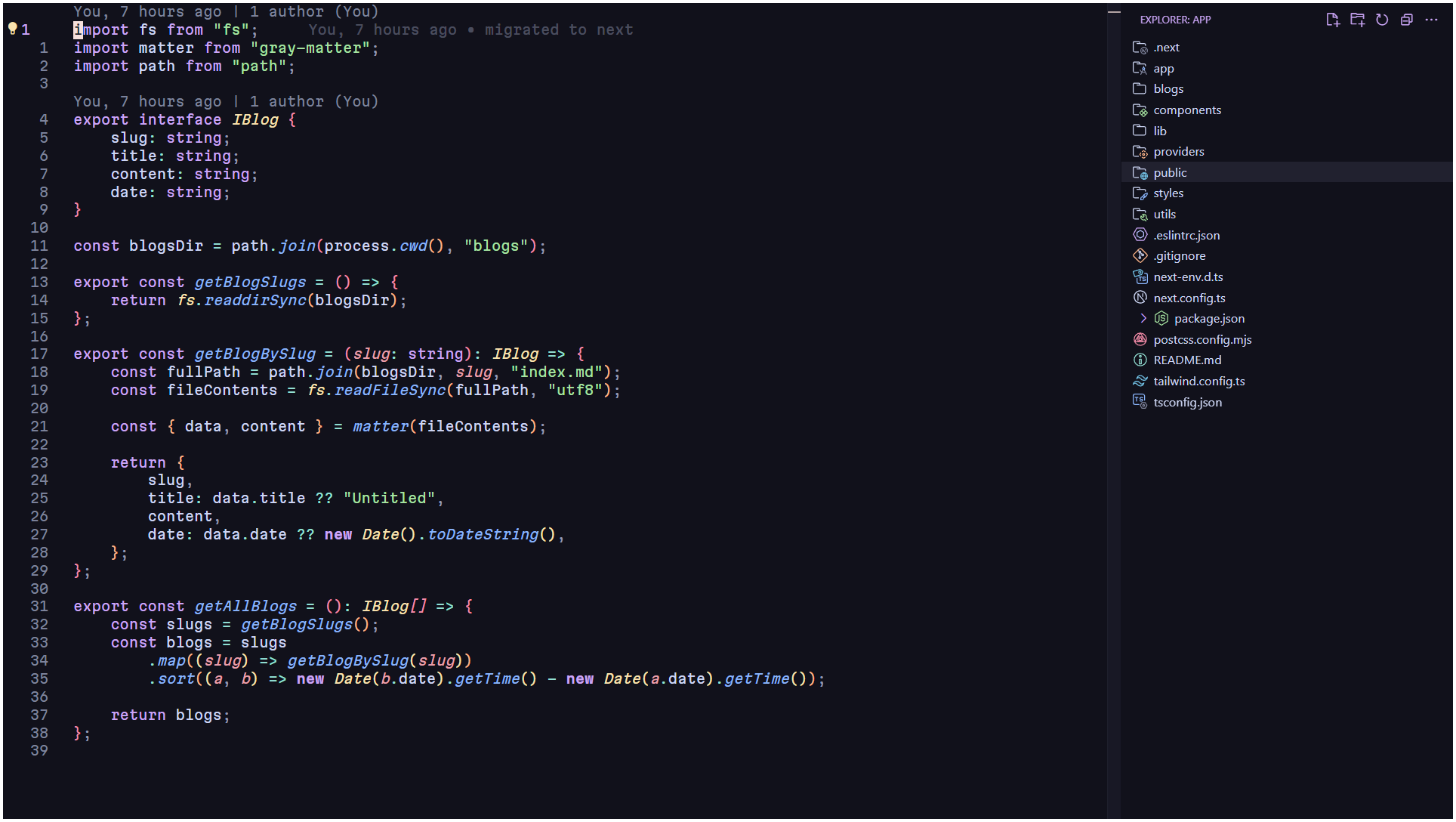
Here are some extensions I use for making VS Code look Minimal
1. APC Customize UI++
This extension allows you to customize the appearance of the VS Code. It gives you full control over the VS Code by which you can completely override settings that affect the appearance of the VS Code.
2. Catppuccin for VSCode
As you might know now that I am fan of Catppuccin themes, I also use it inside VS Code.
Some of my recommended themes
3. Catppuccin Icons for VSCode
Provides file icons for VS Code that matches with my theme. I also use Material Icon Theme sometimes which is based on Material design.
Additional extensions I use in VS Code
- Vim (for emulating Vim key bindings inside VS Code)
- GitLens - Git supercharged (for getting a quick glance when, why and who changed the line of code)
- Error Lens (for highlighting errors, warning and language diagnostics)
- Prettier (for formatting the code)
- Better Comments (for having better comment annotations)
- Code Spell Checker (for checking any spelling mistakes)
Conclusion
This was my setup and some tools I use to be more productive. I believe having a development setup and tools tailored to your needs helps in improving your overall productivity and makes you a better developer.
Thanks for reading <3